Visual Studio Code is Microsoft's very light weight editor. Available for Windows, Mac and Linux.
To get it to work with the Arduino and the ESP8266 you need to add two extensions. The whole design of Visual Studio Code is so that it can easily be configured for any development language using these extensions.
Before you do that install the
Arduino IDE.
Like most of the IDE's I have tried, they rely on the Arduino IDE for all the libraries.
I also made sure it was fully configured with the add-on for ESP8266 before I continued.
With that installed it's time to install the extensions.
The first extension is for C++ and it is by Microsoft:
https://marketplace.visualstudio.com/items?itemName=ms-vscode.cpptools
The other extension is for the ARduino and for this there are several choices. I've used the Microsoft one:
https://marketplace.visualstudio.com/items?itemName=vsciot-vscode.vscode-arduino
I have not tried them but here are some others for the Arduino:
https://marketplace.visualstudio.com/items?itemName=steveyin.arduino-vscode
https://github.com/fabienroyer/VisualStudioCodeArduino
https://marketplace.visualstudio.com/items?itemName=moozzyk.Arduino
They are actually very easy to install.
There is a short code you can copy in and that displays the appropriate list of extensions:
Go to file (Ctrl-P): ext install cpptools
Go to file (Ctrl-P): ext install arduino-vscode
My initial install did not go to plan. I ended up spending more time than I expected but that was down to issues with my machine setup not as a fault with the application!
Important: You must be able to run JSON files. I had problems because my firewall was blocking them for some reason! I had to bypass that.
Important: Windows 10 security, Developer Mode might be restricting installs, On my machine it was restricting me to only install store apps. I had to change mine to Developer mode to get the extensions to install.
Extensions appear in a side bar. Select the appropriate one and press install.
Once installed, either restart or simply press the reload button that appears. Only then do the extensions get downloaded and installed.
Now it should be ready to go.
All projects need to be in their own folder. You can open individual files but without a corresponding folder there is nowhere for the application to save it's settings.
Once you have a new .ino file or project open, the status bar displays Arduino specific content.
There is a tiny selection at the bottom on the status bar to select C++ and the board etc.
You can change the settings and more from the Command Palette menu that appears when pressing F1.
At this point
Intellisense worked up to a point. Where the classes are internal to the code, it worked fine but it could not find the external libraries and dependencies.
To get the rest of the
Intellisense and probably the ability to compile you
MUST select the board AND the COM port on the status bar. That appears to be the trigger to read the appropriate libraries.
This can be a pain if you do not have the Arduino or ESP8266 connected to the PC because you might not have any COM ports. Also, try selecting the COM port first. That's what I did.
That got things working for the main Arduino classes but I was still missing the ESP8266 classes.
That appears to be caused by a slight error in the install. It automatically includes a path that is too specific.
It can be fixed by following the light bulb link from within the code file.
That opened the file c_cpp.properties.json file.
I moved the path lower down the tree, to this:
"C:\\Users\\jcb\\AppData\\Local\\Arduino15\\packages\\esp8266\\hardware\\esp8266\\2.3.0"
The application searches all sub-folders unless you tell it otherwise, so that picked up all the class files needed.
I also included all the Ardunio libraries:
"C:\\Program Files (x86)\\Arduino\\libraries"
It is necessary to restart Visual Studio Code for the change to take effect.
Once that was all working nicely it was time for a compile and upload.
That option can be found from the F1 Command Palette list. Not the most convenient place but it's OK.
It didn't work first time because I had trouble with using a USB hub. I had to swap to a physical USB port directly on the machine but after that it worked at 115,200 baud.
Not an extensive test so far but it's working. I like the
Intellisense in
Visual Studio Code and the style of the app. I'll try this for longer to see if it makes coding that much easier.
==
Update: 20 May 2017
The latest updates stopped Intellisence working with my Arduino code!
Versions:
Visual Studio Code 1.12.2 with the extensions, Microsoft C++ 0.11.1 and Microsoft Arduino 0.2.2
Something has messed up the Intellisense engine. The code would still compile but there were lots of red squiggles under code that was clearly valid.
I managed to find a setting which changed the Intellisense behaviour and put it right! You have to open the File -Preferences -Settings and browse down to the C++ configuration section.
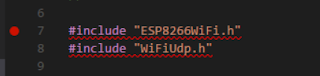 |
| With the 'Default' engine the code looks wrong |
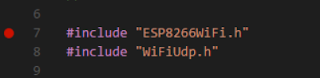 |
| With the alternate 'Tag Parser' the code looks right |
More details about the Intellisense engines and setting for C/C++ can be found here:
https://github.com/Microsoft/vscode-cpptools/blob/master/Documentation/LanguageServer/FAQ.md
The issue has been reported on both the VSCode and the C/C++ extension GitHub sites:
https://github.com/Microsoft/vscode/issues/27006
https://github.com/Microsoft/vscode-cpptools/issues/743
==
Adding the NodeMCU and other ESP8266 boards
I don't remember having to do this but I probably did at some point. Add additional boards from the Arduino Board Manager.
Access this from the Command Palette from the View Menu.
Install the boards you require.
==