Search This Blog

Saturday, 5 August 2023

FreeCAD Tips: positioning sketches and an error

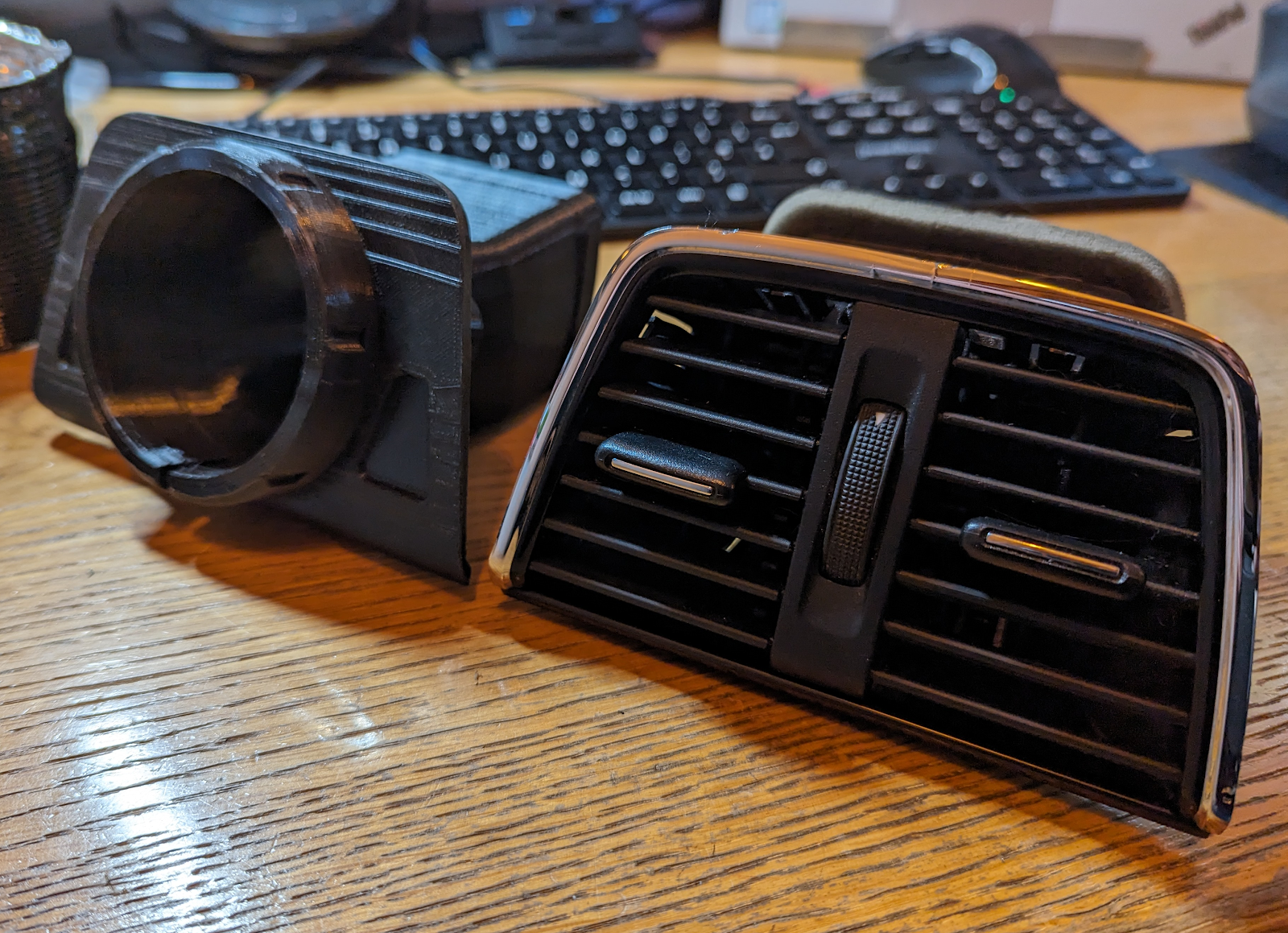
I'm in the process of creating a somewhat awkward shape. It is to fit in the space of a vent in a car. There is not a single square angle on it to use as a starting point for measurements.

I've been using some techniques in FreeCAD that I rarely use and it's worth a reminder for myself for next time.

Positioning Sketches

Did you know that you can move and angle a sketch. It's a very handy feature.

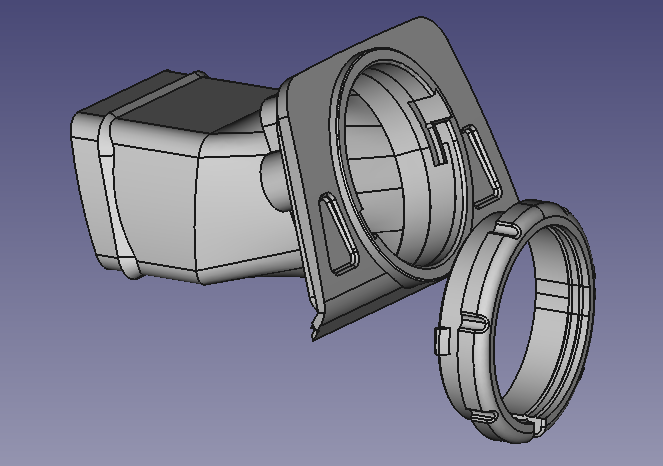
As several of the edges are not square to anything, I have picked an arbitrary horizontal. This roughly equates to how the original vent sits on a table. To draw some of the surfaces, I have drawn them all on a flat plane and then repositioned the sketches so they all rest on the same point and at the same angle.


That is an example of a sketch at an angle. It's hard to show on a 2D image.


Selecting the ellipsis (...) at the end of the Map Mode property for the sketch, brings up a dialogue panel to change the position of the sketch.


This is the dialogue box I used to get the sketch in that position. It's worth noting that the directions and angles are all relative to which plane was originally selected as the base for the sketch. That means the Z direction is always along the normal vector out of the drawing.

Using the Part Design workbench, I have copied and pasted many of the sketches to use as the basis for other sketches, or even to position at different distances to form symmetrical shapes. When the sketch is copied it retains the position of the copied sketch.


When the copy dialogue appears I have found it necessary to unselect the original plane, otherwise I end up with lots of duplicate standard planes.


Hidden Object Errors

I don't get this very often but it can be confusing. Sometimes a sketch will just not work as a pad or a pocket. Refusing to compute.

In the case I have in mind, I luckily remembered that when I had tried to create one circle, nothing had appeared and I had to repeat the process. What I know now is that the circle had been created with a zero radius!


I found it by going into the sketch and selecting each circle element in turn to see which one did not change colour. I deleted the rogue circle from the list of elements. In this case, I also had to recreate some of the conditions and I was back to a working sketch.


[FreeCAD: 0.21.0]


Download:

STL and STEP format vent model (Zip)


==


Sunday, 9 July 2023

Renovate garden benches

Over the last year I've brought three garden benches back into good repair.


In each case, I've sourced pre-cut oak slats and replaced all the bolts with modern equivalents.


==

Tuesday, 27 June 2023

Lime Hawk-Moth

 I managed to get a couple of very nice pictures of this moth in our garden.


Lime Hawk-Moth.

Essex, UK
Google Pixel 7.

==


Monday, 29 May 2023

And then there were three

Holme Grove Boxter arrives at ours to join Holme Grove Constable, Tom, and Holme Grove Gwygion, Henry.


==


Monday, 8 May 2023

Compost and storage

We recently had a long overdue tidy up of an area we use for storage and compost.


Reused existing fence panels, some new gates and fresh black barn paint and it all looks much tidier.

==


Thursday, 24 November 2022

QCAD tips and preferences

I've started on some architectural drawings and have already come across some behaviour that I am going to come across more than once, so it is worth reminding myself how to do these things.

Blocks

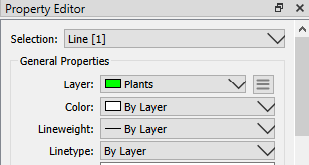
The standard architectural blocks that can be downloaded from QCAD's site, have pre-defined layers within them.

This is useful to set the colours and line types for all of the similar items in one go and still be able to include the same item in different layers, without affecting how they display.


I use that, so that I can have layers that are only used to display or hide different areas of a drawing.

[QCAD 3.27.8]

It can often be convenient to re-use blocks but with different colours. By default, QCAD uses the colours and line types within the block. However, it supports assigning the layer colour to any line in a block drawn on layer 0.


To enable the use of assigning colours from the Layer, the Layer Compatibility option needs to be changed to "Layer 0 behaves differently" This is in the Application preferences, Layer, Compatibility settings.

I find this useful to avoid having to have duplicate copies of the same block.

[QCAD 3.28.1]

Exiting the Block Editor

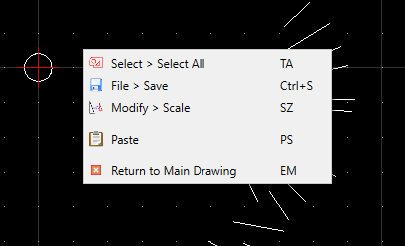
I have not found a better way to exit the block editor than right clicking and selecting 'Return to Main Drawing'. from the pop-up menu.


I should probably look up the best method to do that or learn the keyboard commands.

[QCAD 3.27.8]


Architectural Dimensions

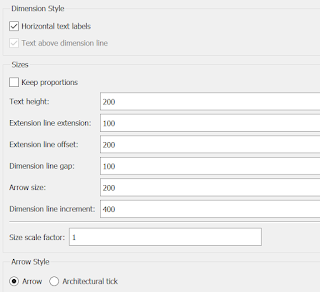
The default appears to be setup for engineering drawings.

I have changed my preferences to be larger text at 200 and a few other changes to my liking.


This worked for the smaller scale site plans but I had to use a much smaller scale when I was creating the floor plans.

I guess I'll be adjusting this for each drawing type.

[QCAD 3.27.8]


File Save-As

The default format used by QCAD is:

R27 [2013] DXF Drawing [Open Design] (*.dxf)

Having shared drawings with various consultants and engineers, I have found that they prefer .dwg files However, there is no consistency in the version. One could only open R21 2007 and another could only use R27 2013.


[QCAD 3.27.8]


High DPI Scaling

When I installed QCAD on a newer laptop with Windows 11, the font for some dialogues was far too small and none of the settings within QCAD fixed it.


I used the Windows Compatibility settings to fix it.


==


I'll update this page as I find other things that I need to remember.

==


Wednesday, 23 November 2022

QCAD and LibreCAD 2D drawing

I have started to look at software to prepare some drawings. I need to create site plans and building designs.

As usual I am looking at open source software and the two products that come up are LibreCAD and QCAD Community Edition. QCAD also has a paid for professional version. I'll come on to that in a minute.

It has not taken me very long to decide which of the two, very similar applications to use.

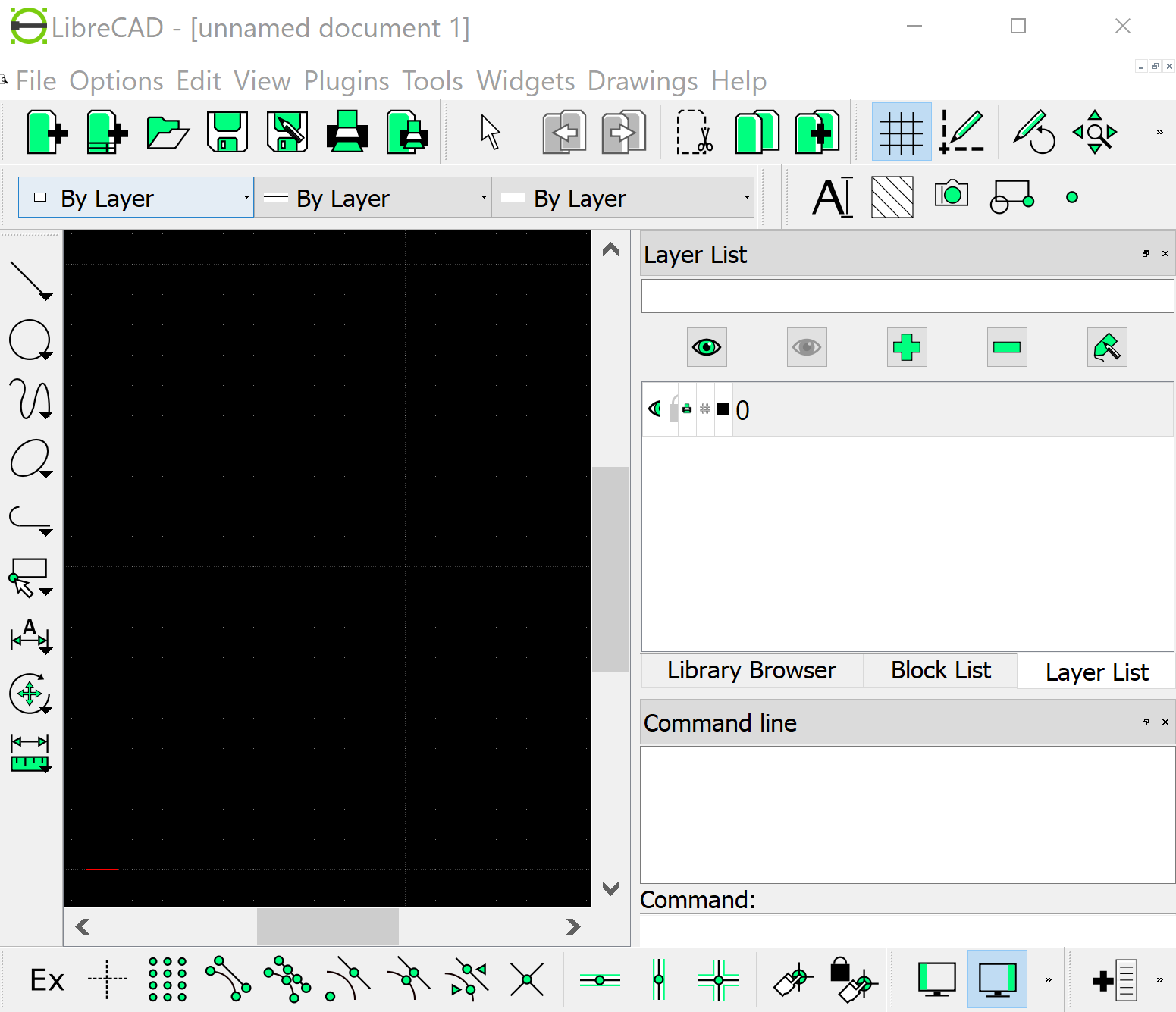
LibreCAD

The latest nightly builds of LibreCAD throw up a Windows security warning. There may not be anything wrong with them, except that the nightly builds are not signed. That makes them untrusted and for this small project, I don't have the time to spend authenticating them.

That leaves me with the last full stable build of LibreCAD 2.1.3, released in 2016.

I have not given LibreCAD much of a chance. The first thing I found out is that LibreCAD does not include layouts. These are the drawing views that allow different elements of the same drawing to sit next to each other. It can be awkward creating drawings in the layout intended for final presentation.


LibreCAD did not strike me as very efficient. The document I loaded crashed first time. When I did load it, I used the auto zoom to find where on Earth it was in the view. I found scrolling and zooming fairly slow. I guess this is to be expected as the application is based on an older underlying code base. When I try to do anything, there is a 50% chance the programme will crash!

I won't be using LibreCAD for the time being.

QCAD

I've been happier during the short time I've used QCAD. I've been using it on and off for a couple of days and it has been stable. I had no issue loading and importing multiple drawings to form one larger. The scroll and zoom is very fast and smooth.


I've installed QCAD 3.27.8 which is more up to date. It installed without issue. This version was released about a month ago, October 2022. Looking  at the change log, it is in continuous development  at the moment, with releases every few months.


The QCAD Community Edition, also does not have layouts, however, the Professional version does and it does not cost very much. It adds a lot of nice to have features.

We'll see how I get on.


Reviews

There are a number of reviews that compare the two. I found the following useful;

https://geekthis.net/post/librecad-vs-qcad/


==